
Start with your video
Choose a video from your media library, upload one, or provide an eligible video source.
Keep your channel live
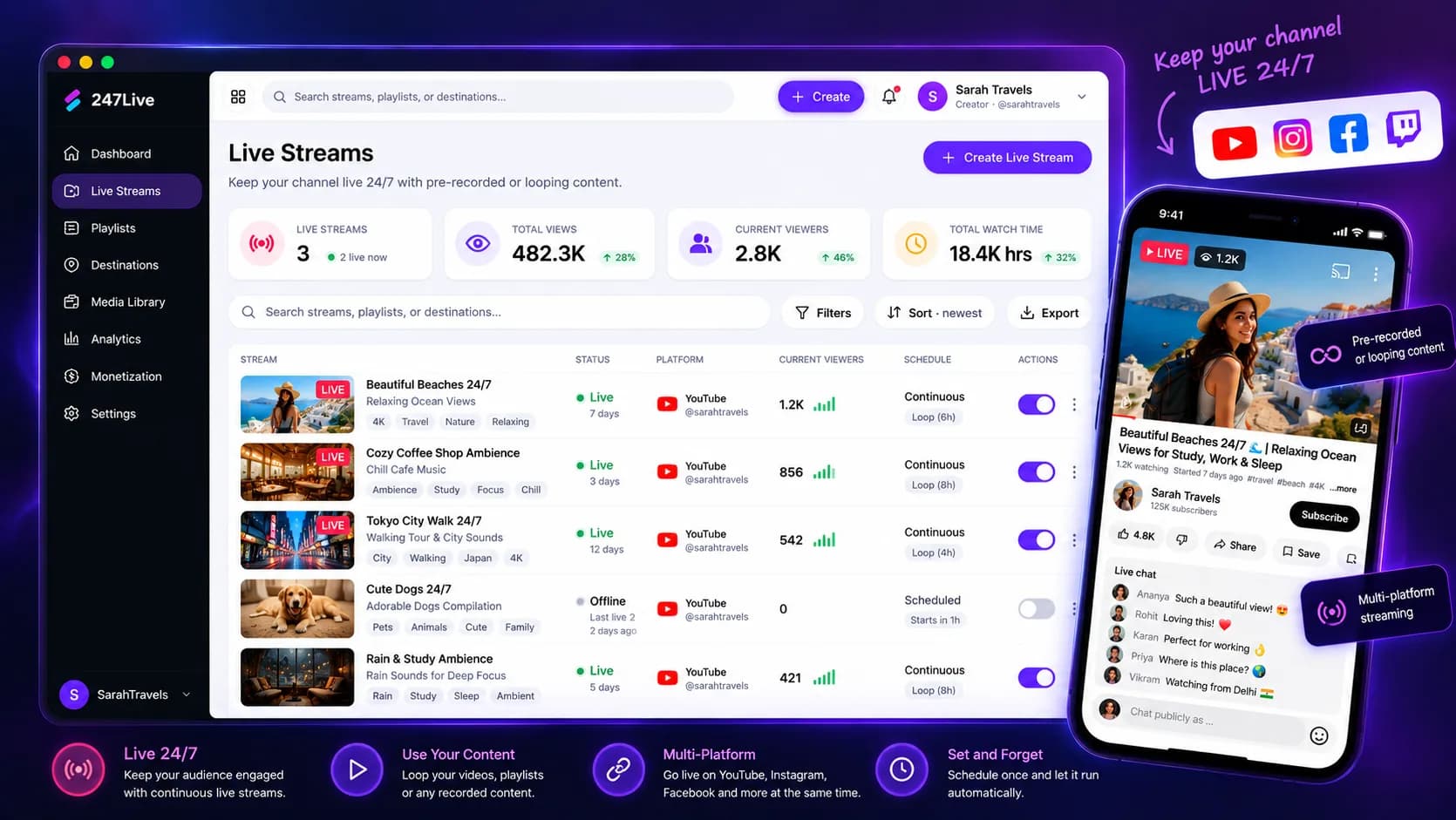
Use a video you already own to run a scheduled YouTube LIVE stream. Prepare the stream in your dashboard, choose its window, and monitor its status while it runs.
Explore the product at your pace. You choose what to publish or activate.
What you can do
Choose a video from your media library, upload one, or provide an eligible video source.
Set a title and the time window for your stream, then schedule it for your connected YouTube channel.
Follow stream status and use available controls to watch, stop, restart, or clone a slot.
How it works
Each step stays in your control, from setup through sharing.
Authorize the channel you want to stream to.
Select a video, set the title, and choose the live window.
Review the stream slot and track its status in the Live dashboard.
Know what the feature does, what it connects to, and what stays in your hands.
Questions creators ask
No. This feature schedules YouTube LIVE streams.
The continuous stream feature runs from a looping video; playlist support varies by the live setup available in your account.
No. Monthly live hours and concurrent stream capacity depend on your plan.